
Format memory
In the latest version of desktop Snip we have added tab and row memory, so that the app always remembers which format you last copied to your clipboard. This makes it super convenient and quick to copy any format you might be using. Format memory also now extends to Copy MS Word, Copy TSV, and Copy PNG buttons.
Navigate from the keyboard
You can now navigate through all copy buttons on every tab, including Copy MS Word, Copy TSV, and Copy PNG buttons with just the up and down arrows on your keyboard.
Use SHIFT + up or down arrow to switch between tabs.
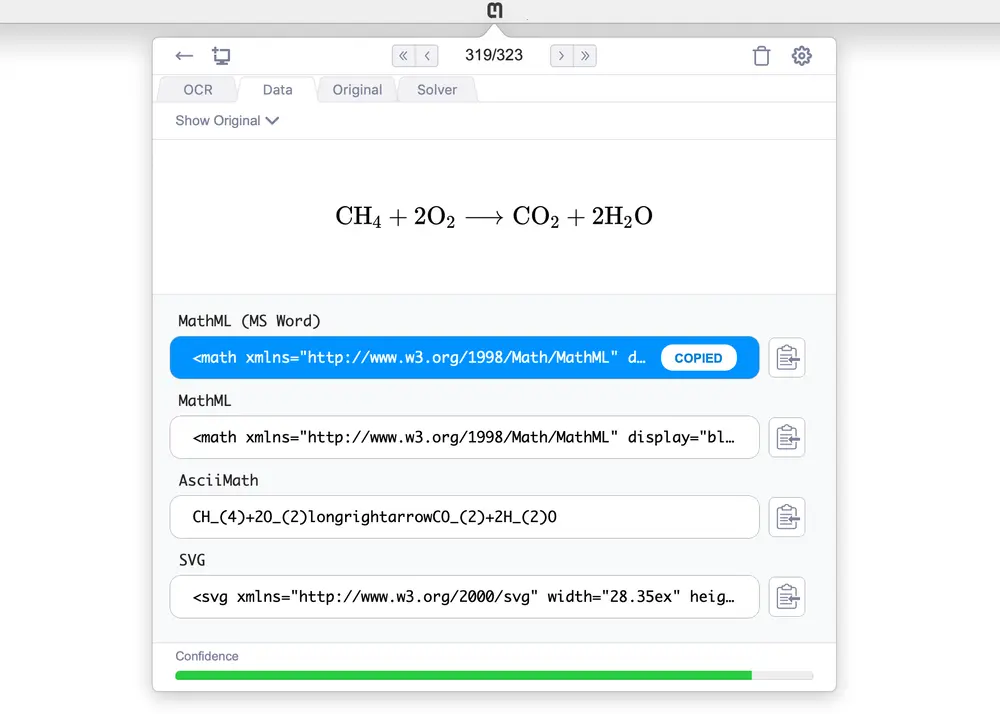
Rendered result on Data tab
You will now find the rendered result on the Data tab (this used to only be shown on the OCR tab). This is very convenient if you are only using MathML, Asciimath, or another alternative format from Snip, and don’t want to be constantly checking the result on the OCR tab then going back to the Data tab to copy your preferred format.
Show original images
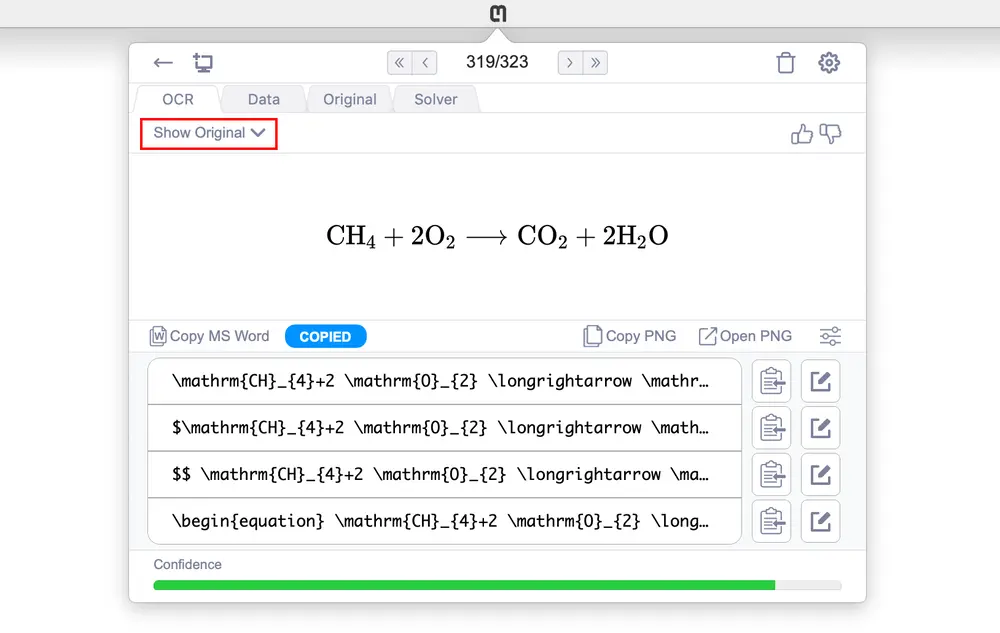
We have added a way to show and hide the original image on the OCR on Data tab, for easy comparison between inputs and outputs.
See a mistake between your screenshot and what we returned? Send us an OCR feedback by clicking the thumbs down button on your OCR tab.
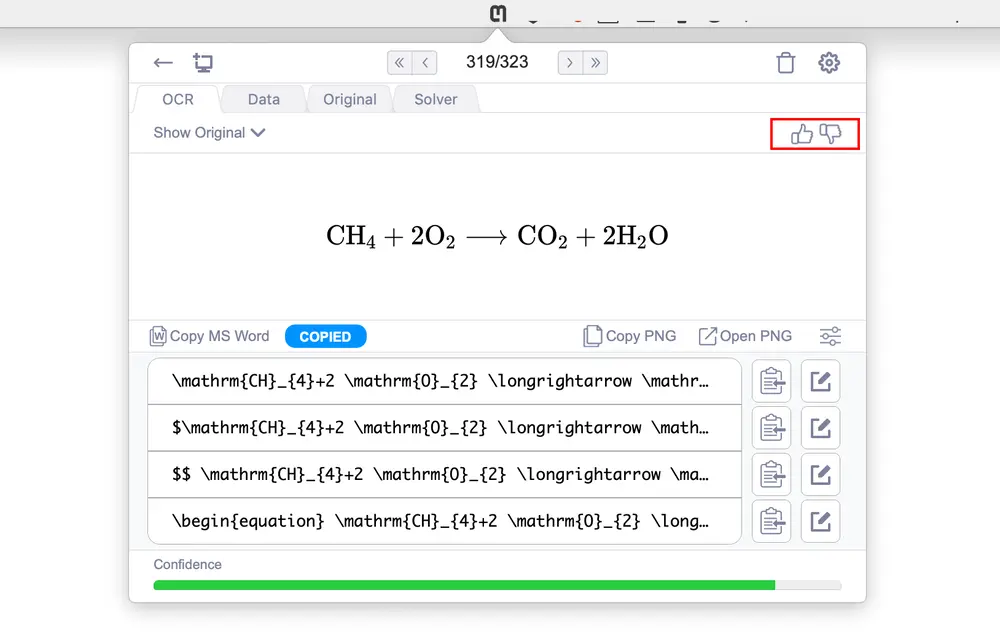
You can also send us a thumbs up when something works well! 😃