Mathpix Snip for macOS
Follow these steps to get started with the Snipping Tool.
Download for macOS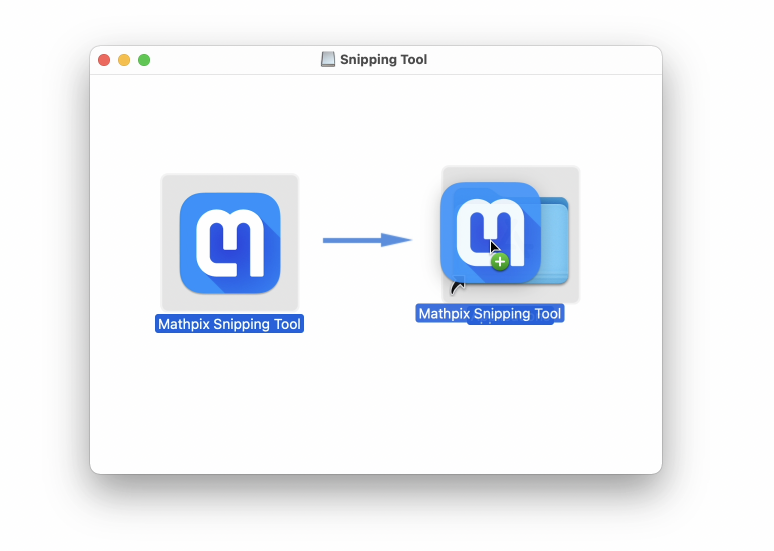

1 / 4
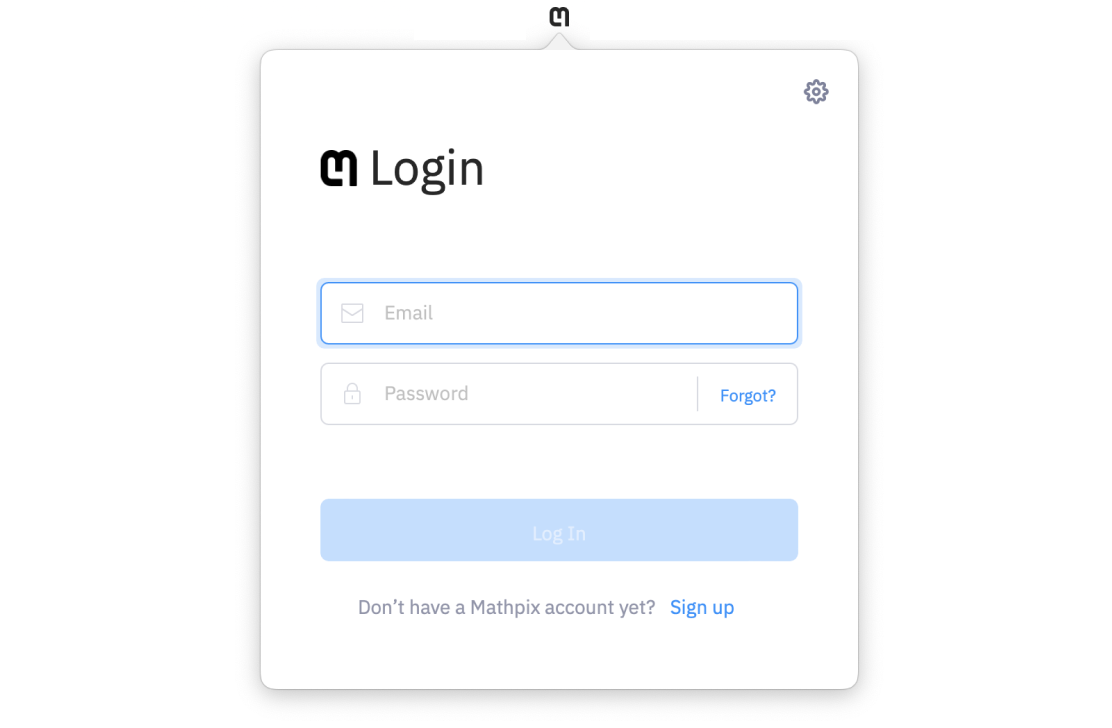
Step 1. Once the download is complete, double click the file in your Downloads folder to open it. You will see a prompt to drag Snip into your Applications folder. Be sure to drag Snip into your Applications folder so it is easier to find in the future!
Taking your first Snip
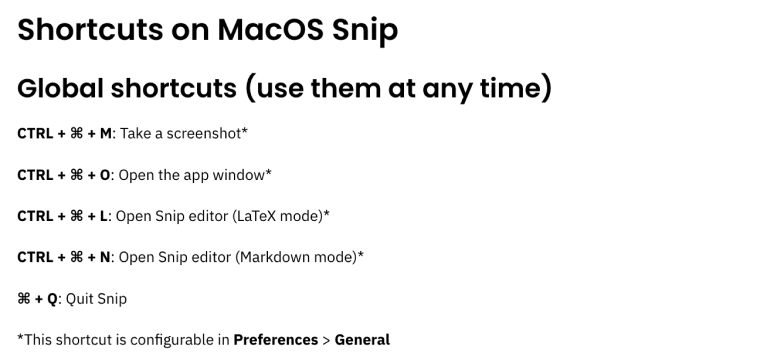
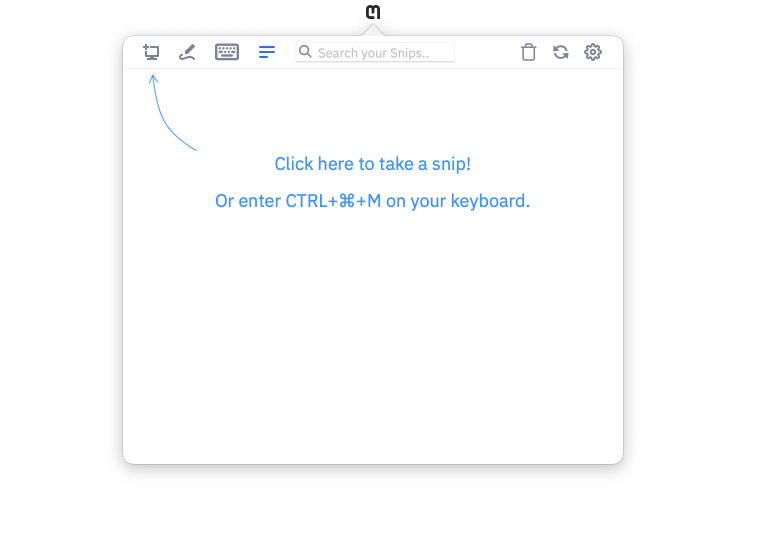
After either clicking the Screenshot button or entering the keyboard shortcut (CTRL+⌘+M), your screen will turn gray and you will need to click and drag your cursor to capture the desired area of your screen.
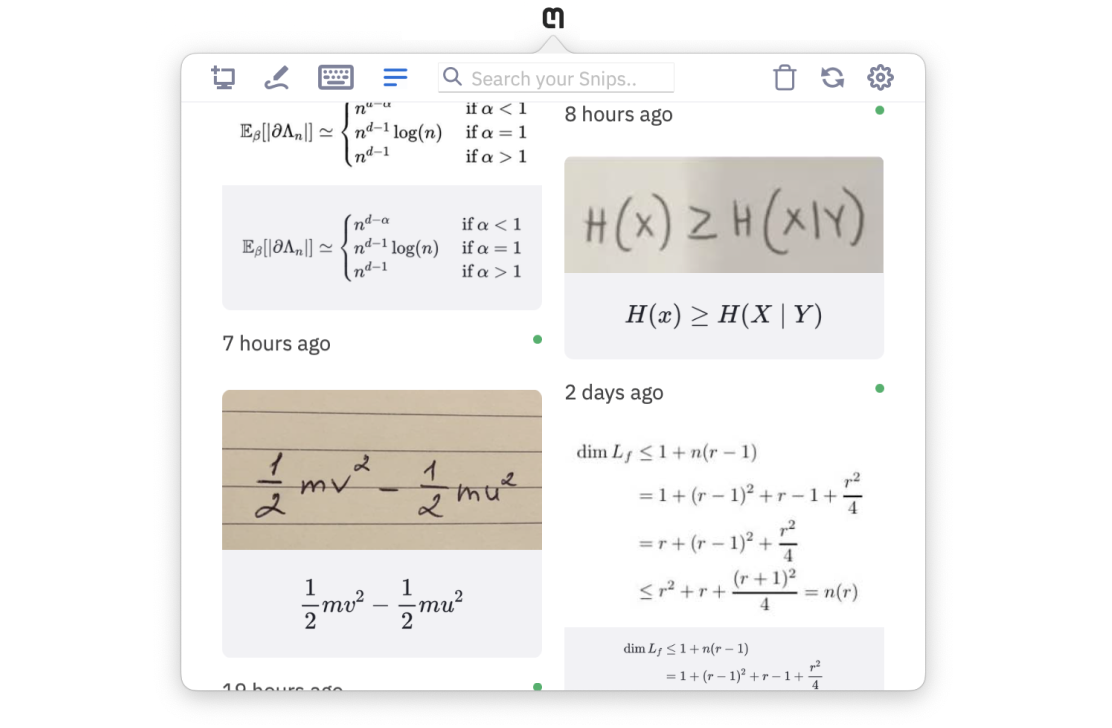
Release to capture the content inside of the box. Your result will automatically appear in the app.
Formats
The formats are spread across three tabs:
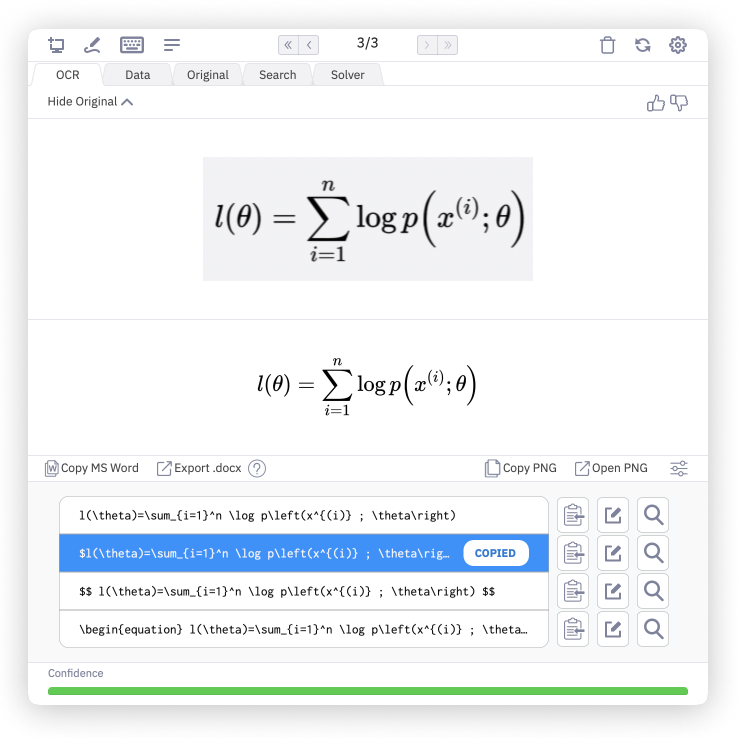
OCR
Text and LaTeX, PNG/TIFF of the rendered result.
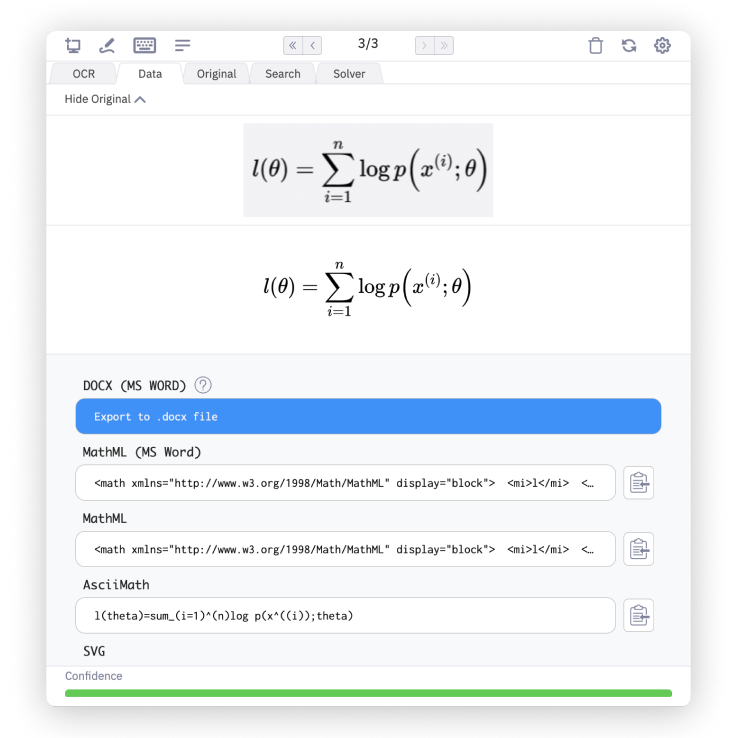
Data
Alternative text formats like DOCX, MathML, AsciiMath.
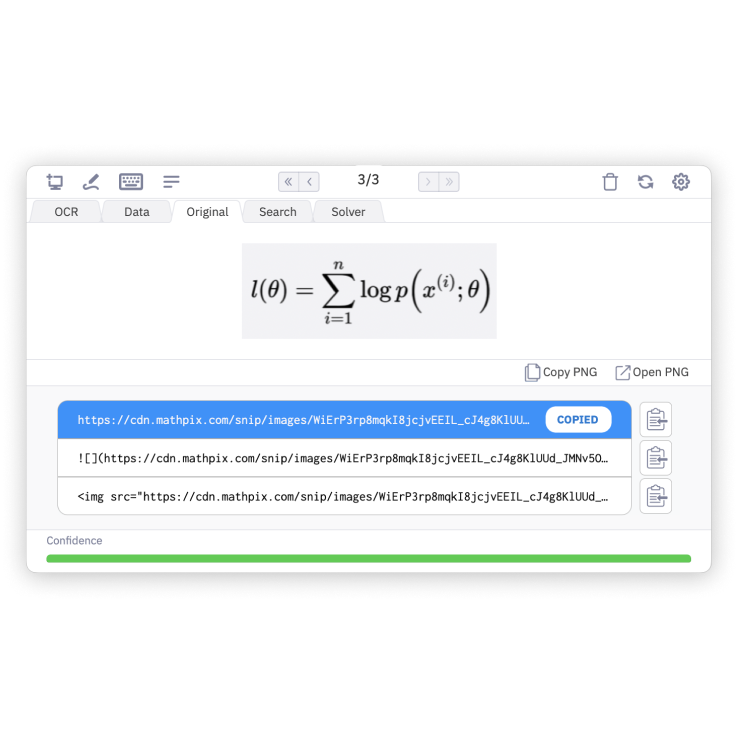
Original
Image URLs or PNG/TIFF of the original image.
Get more done on the go
Download the Snip app for mobile and tablet to work with your Snips anywhere.
Seamlessly transfer your digitized math content between devices and unlock the power of converting handwritten math equations, tables, and diagrams using your smartphone camera.