
Using Snip with Microsoft Excel (and any other spreadsheet software)
Snip can be used to extract tables/tabular data from PDFs and images.
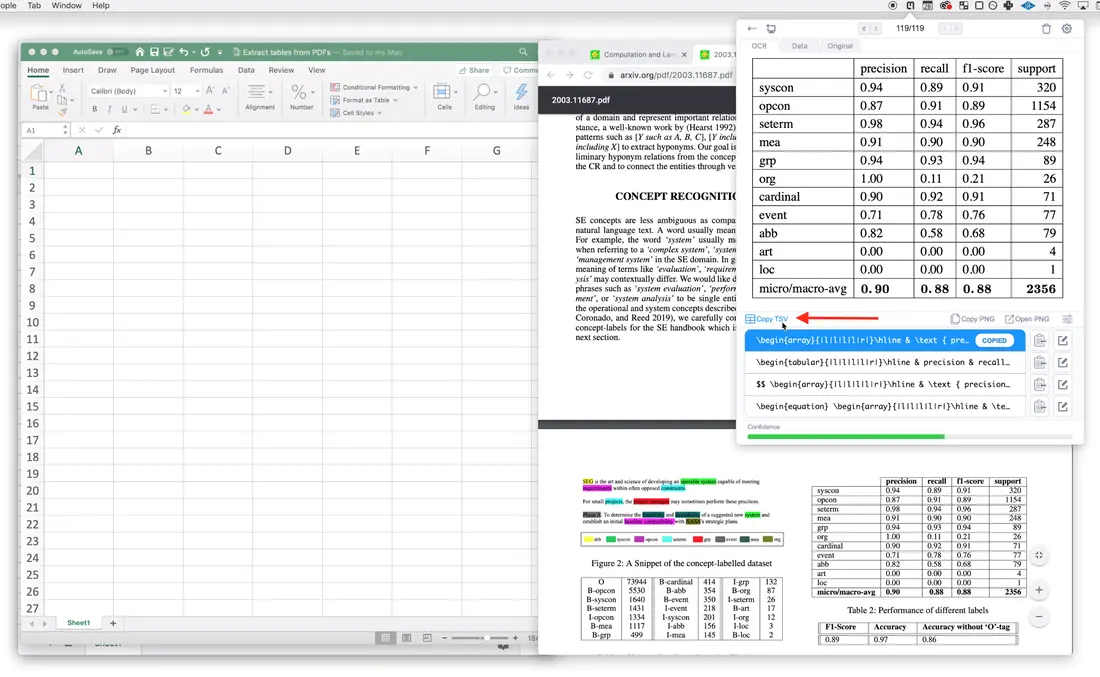
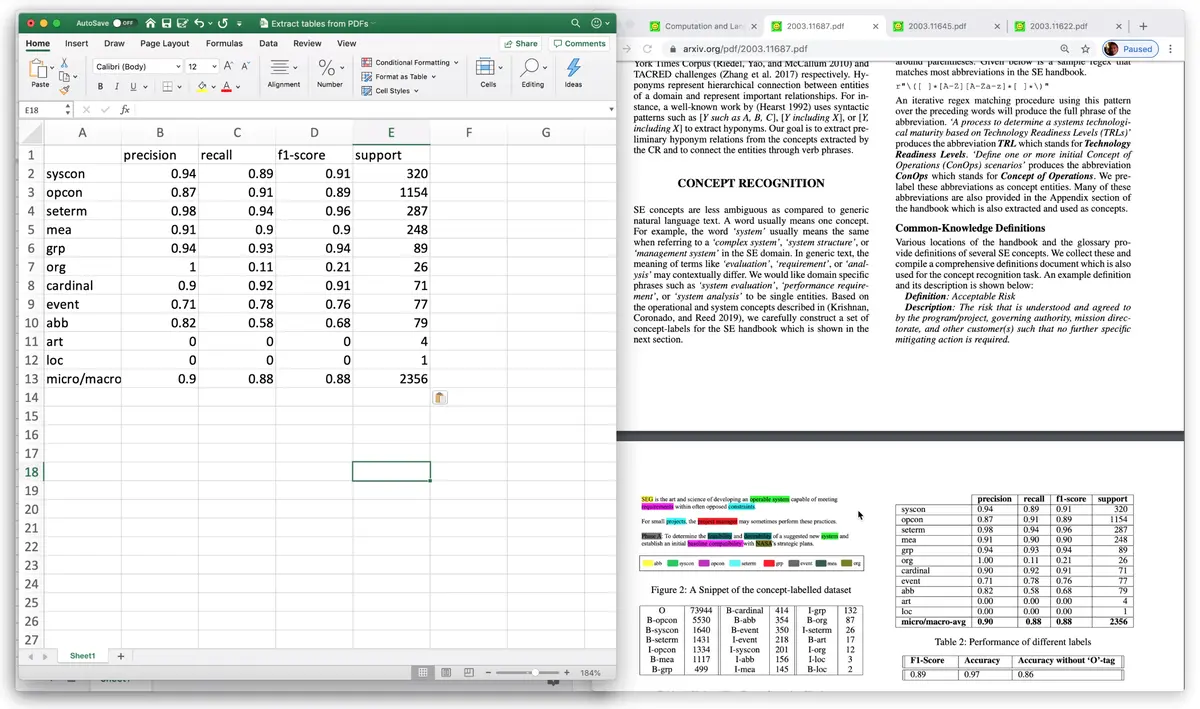
When taking Snips of tables, the app will return a TSV format. TSV stands for Tab Separated Values, and when copied to your clipboard, it can be pasted directly into Microsoft Excel or any other spreadsheet software.
Here are the simple steps for using Snip to put tables in a spreadsheet:
- Display the table want to insert into your spreadsheet on your screen.
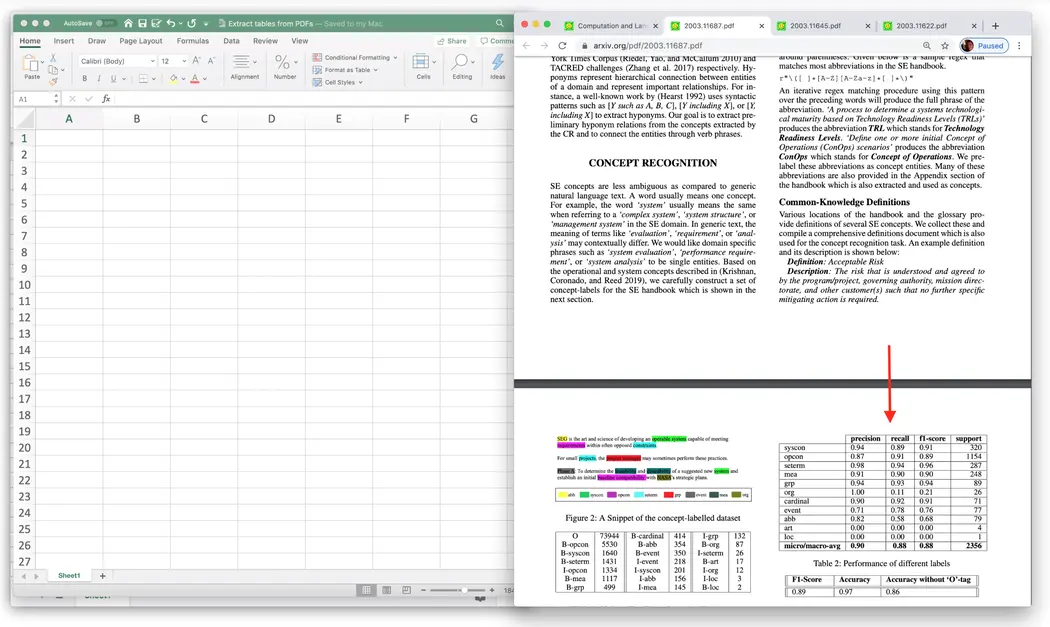
- Click the screenshot button or enter the keyboard shortcut
ctrl+alt+m/ctrl+command+m.

- Click and drag the crop box around your desired table, release to Snip.
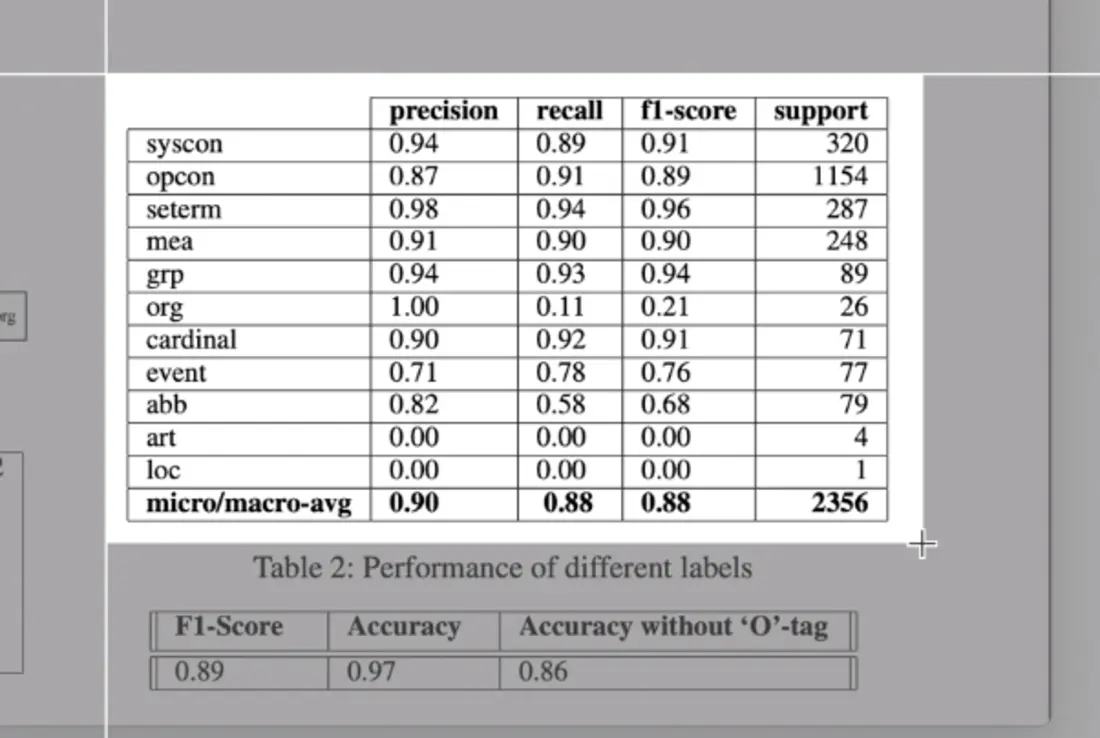
- Check your Snip result, then click the Copy TSV button to copy the TSV format to your clipboard.
- Open your Microsoft Excel sheet and click into the cell where you would like to insert the table, and paste!
Here is a short video showing all the steps together:
You can also watch a full video about digitizing tables to use in Microsoft Excel, Google Sheets, and Numbers on our Youtube channel.